communicative tools are the system which enables easy to communication between the teacher and
 students or among students beyond the physical barrier of the classroom. communication is necessary for any aspect of life and that allows all learners to learn and interact with each other. these tools enable the interaction between members of the teamwork involved in the different stages of integrated product, processes, or manufacturing system development. examples of email, electronic boards, chat, teleconferencing, and electronic whiteboards. Communicative tools can be divided into two subcategories:
1) Synchronous- is refer to the Communication within a computer, however, is usually synchronous and is governed by the microprocessor clock. examples: chat, electronic whiteboards or video conferencing.
2) Asynchronous: is referring to the most communication between computers and devices is asynchronous -- it can occur at any time and at irregular intervals. examples: email, electronic bulletin boards.
1) Blogger:
The given below are the steps or procedures to
create a blog using our Gmail account, that
we have learned in the previous session
Steps to create a blog.


5. Enter a name for your blog.

6. Choose a blog address or URL.

7. Choose a template.

8. Click Create blog.

In short, Procedures
to create Blog:
Type www.blogspot.com
Go to Blogger.
Click on Sign In. It's
in the upper-right corner of the window
Enter a Display Name
and click Continue to Blogger
Click on Create New Blog.
Type a title for
the blog.
Type a URL for
your blog.
steps to create discussion forum (Edmodo)


- Go to www.edmodo.com 2. Click to 'I am a student"


3. Sign up for your free account if you are new or Sign in with Google.account
4. Enter your account safety to unlock the Edmodo features if you need (Phone number or email address)

5. Clicked join class
6. Entered the classroom code (c88iha) to join the class

Type www.edomo.com
Click on "Log in"
Enter using Gmail account
select google account
Select "I'm a student"
Enter the given code.
click 'Join the class"Finally, answer or comment on the questions have given
Google Classroom
Concept of Google Classroom
 Google Classroom is a free website service created by Google for the school that aims to simplify creating, distribution and grading assessments in paperless ways. The main purposes are sharing files, assignments, and other related documents with teachers and students. Google classroom consists of the Google drive for assignment creation and distribution, Google Docs, sheets and slides for writing, Gmail for communication, and Google calendar for scheduling.
Purposes of Google Classroom
 The purposes of Google Classroom are as follows:
Benefits of using Google Classroom
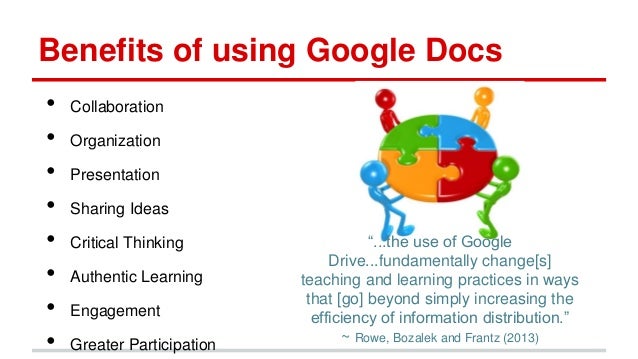

Pros of Google Classroom are:
Cons of Google Classroom are:

 Insert password as 123456789
Purposes of Google Classroom
The purposes of Google Classroom are as follows:- To facilitate paperless communication between teachers and students.
- Google classroom allows teachers to create classes, post assignments, organize folders and view work in real-time.
- Students and teachers can share information through all Google apps.
- Google classroom offers a one-stop platform for facilitating digital production, workflow and communication between teachers and students.
Exposure
Google Classroom provides students with exposure to an online learning system. Exposure to Google Classroom may help students transition into other learning management systems used in higher education.
Google Classroom provides students with exposure to an online learning system. Exposure to Google Classroom may help students transition into other learning management systems used in higher education.
Time Saver
Google Classroom is a huge time saver. With all resources saved in one place and the ability to access the classroom anywhere, teachers will have more free time to complete other tasks. Since the classroom can be accessed from a mobile device, teachers and students can participate through their phones or tablets.
Google Classroom is a huge time saver. With all resources saved in one place and the ability to access the classroom anywhere, teachers will have more free time to complete other tasks. Since the classroom can be accessed from a mobile device, teachers and students can participate through their phones or tablets.
Communication
Built-in tools make communicating with students and parents a breeze. Teachers and students can send emails, post to the stream, send private comments on assignments, and provide feedback on work. Teachers have full control over student comments and posts. They can also communicate with parents through individual emails.
Built-in tools make communicating with students and parents a breeze. Teachers and students can send emails, post to the stream, send private comments on assignments, and provide feedback on work. Teachers have full control over student comments and posts. They can also communicate with parents through individual emails.
Collaborate
Google Classroom provides ways for students to collaborate. Teachers can facilitate online discussions between students and create group projects within Google classroom. Moreover, students can collaborate on Google Docs which have been shared by the teacher.
Google Classroom provides ways for students to collaborate. Teachers can facilitate online discussions between students and create group projects within Google classroom. Moreover, students can collaborate on Google Docs which have been shared by the teacher.
Engagement
Most digital natives are comfortable with technology and will be more apt to take ownership of their learning through the use of technology. The classroom offers numerous ways to make learning interactive and collaborative. It offers teachers the ability to differentiate assignments, include videos and web pages into lessons, and create collaborative group assignments.
Most digital natives are comfortable with technology and will be more apt to take ownership of their learning through the use of technology. The classroom offers numerous ways to make learning interactive and collaborative. It offers teachers the ability to differentiate assignments, include videos and web pages into lessons, and create collaborative group assignments.
Differentiation
Through Google Classroom, teachers are easily able to differentiate instruction for learners. Assigning lessons to the whole class, individual students, or groups of students takes just a few simple steps when creating an assignment on the Classwork page.
Through Google Classroom, teachers are easily able to differentiate instruction for learners. Assigning lessons to the whole class, individual students, or groups of students takes just a few simple steps when creating an assignment on the Classwork page.
Feedback
Providing meaningful feedback to students is a valuable part of all learning. Within the grading tool of Classroom, teachers can send feedback to each student on assignments. The ability to create a comment bank for future use is also available within the grading tool. In addition, the Classroom mobile app allows users to annotate work.
Providing meaningful feedback to students is a valuable part of all learning. Within the grading tool of Classroom, teachers can send feedback to each student on assignments. The ability to create a comment bank for future use is also available within the grading tool. In addition, the Classroom mobile app allows users to annotate work.

Pros and Cons of Google Classroom
Pros of Google Classroom are:
Easy to use and accessible for all devices:
Google Classroom is easy to use and it makes it easy for us to add as many learners. We can create Google documents to manage assignments and announcements, post youtube videos, add links, or attach files from Google drive. Learners will find it equally easy to log in, as well as receive and turn in assignments.
Effective communication and sharing
The greatest advantages of Google Classroom is Google Docs. These documents are saved online and shared with a limitless number of people, so when we create an announcement or assignment using a Google doc, we learners can access immediately.
Effective feedback
Google classroom gives us the opportunity to offer feedback which is more effective, as fresh comments and remarks to the students.
No need for the paper
Google classroom is certainly interested in getting as soon as possible. We did not require any paper to grade the assignments rather we can do it through soft copy using Google Docs.
Cons of Google Classroom are:

Limited integration options:
Google classroom has limited integration with google calendar, which may cause some problems with organizing materials and assignment deadlines.
No automated updates:
Activities do not update automatically, so learners will need to refresh regularly in order not to miss important announcements.
Difficult learner sharing:
Learners cannot share their work with peers unless the become "owner" of a document and they will need to approve sharing options for documents.
Editing problems:
After an assignment is shared or published in the google classroom. we cannot edit it or delete any part of the assignment we want, which could cause a problem.
Steps for creating Google classroom:
Go to the website of google as http://www.google.com
Click on the web store chrome
Add to chrome/ add extension to install in the laptop.
Login with the help of Gmail account at 06150254.pce@.rub.edu.bt
 Insert password as 123456789
Then accept and done.
Again click on the Google Apps
Click to google apps and then scroll to more
Double click to google classroom
Select I am a student
Click to + sign and join the class
Log in to class
Steps to create a classroom
Click to classes
Click to the + sign
Select on create a class
Invite your students/teachers in the class by giving your code or email.
Steps to post questions
- Go to your class
- click class on classwork
- click on option questions
- Write down questions
- Click allow if you want students to edit your work
- Then click Ask and then post it
Integrating Google classroom in teaching and learning are
- Google classroom helps to exchange information between teachers and students.
- It will help teachers to post questions online.
- It allows students and teacher for sharing ideas and knowledge.
- It allows teachers to post teaching and learning material.
- It allows both teachers and students to discuss, comment on it.

No comments:
Post a Comment